macOS · Apple Silicon (M1–M4) & Intel
VPN Setup on macOS (MacBook / iMac)
Complete guide for Mac (Apple Silicon M1–M4 and Intel): App Store or DMG installation, Gatekeeper permission, and subscription import.
-
Step
App Installation
Open the page in App Store and install the app. Launch it, in the VPN configuration permission window click Allow and enter your passcode.
-
Step
Add Subscription
Click the button below — the app will open and the subscription will be added automatically
-
Step
Connect and use
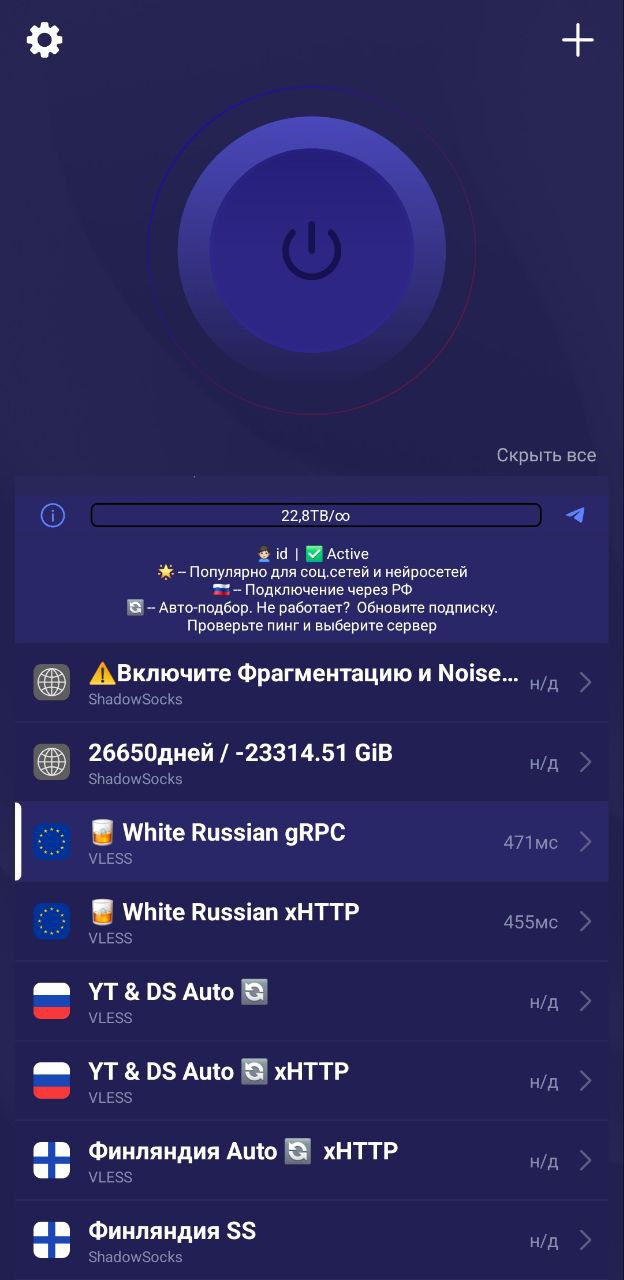
In the main section, click the large power button in the center to connect to VPN. Don't forget to select a server from the server list.
-
Step
App Installation
Download the app from the App Store (Global only). Temporarily unavailable in the Russian App Store — change your region or use UXWay.

-
Step
Add Subscription
Click the button below — the app will open and the subscription will be added automatically
-
Step
Connect and use
In the main section, click the large power button in the center to connect to VPN. Don't forget to select a server from the server list. If needed, choose another server from the server list.
-
Step
Download INCY
1. Download INCY (Global App Store only). Temporarily unavailable in the Russian App Store — change your region or use UXWay.
2. Open, allow everything the app needs to work.
3. Enable XrayTUN in the app's Advanced Settings.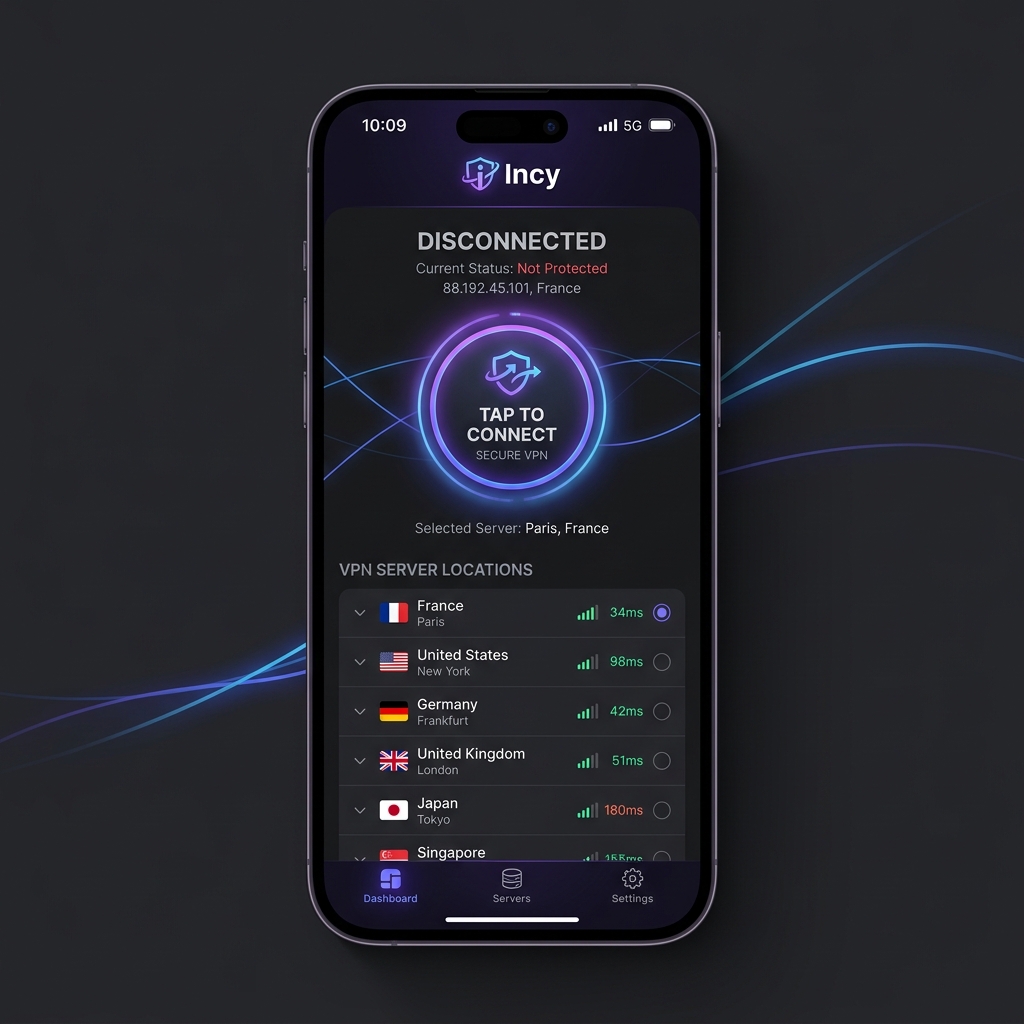
-
Step
Add a subscription to the app
Click on the button below to add a subscription. Check the Routing section -- the OutlineKeysRobot 4 JSON rule should be added automatically.
-
Step
App Installation
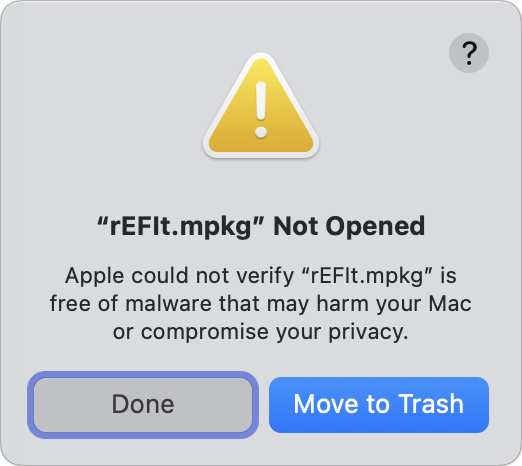
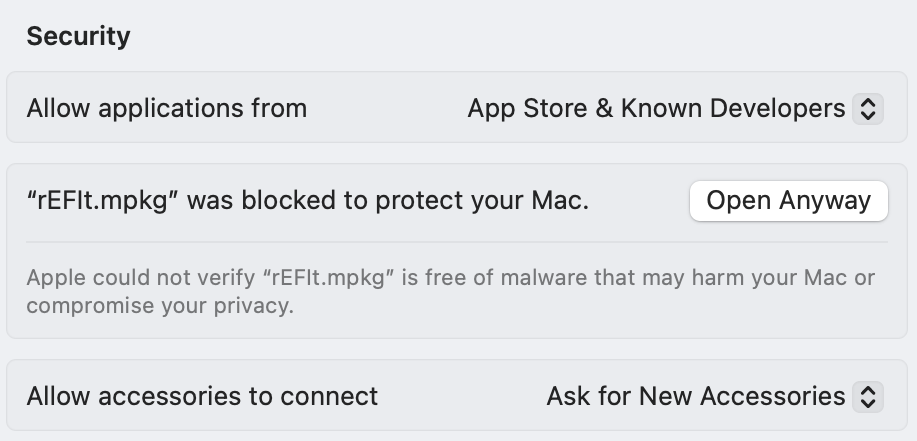
Choose the version for your device, click the button below and install the app.
-
Step
Add Subscription
Click the button below to add subscription
-
Step
If the subscription is not added
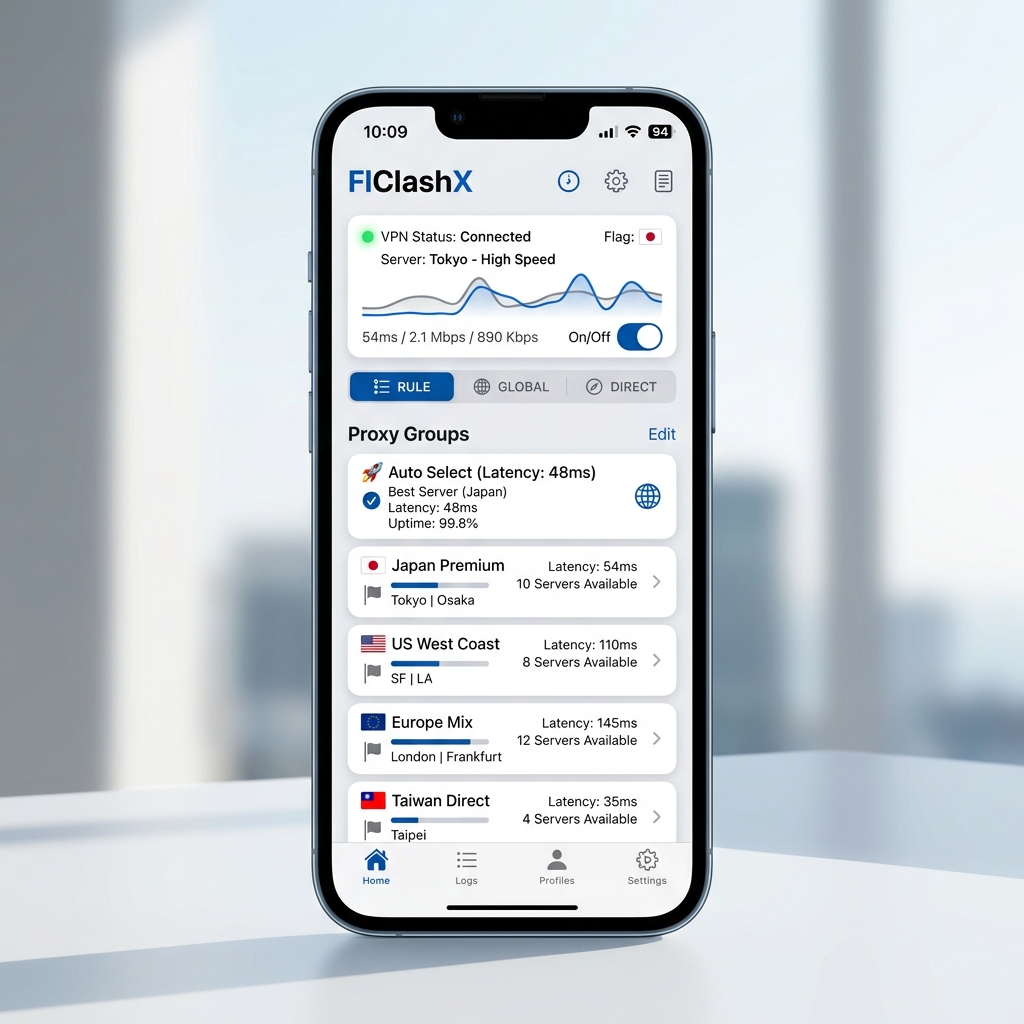
If nothing happens after clicking the button, add a subscription manually. Click the Get link button on this page in the upper right corner, copy the link. In FlClashX, go to the Profiles section, click the + button, select the URL, paste your copied link and click Send
-
Step
Connect and use
Select the added profile in the Profiles section. In the Dashboard, click the enable button in the lower right corner, and then turn on the switch next to the TUN item. After launching, in the Proxy section, you can change the choice of the server to which you will be connected.
-
Step
App Installation
Download and install the app from the App Store.
-
Step
Add Subscription
Click the button below — the app will open and the subscription config will be imported automatically. The config will not be visible until the VPN profile is added to the system.
-
Step
Add VPN Configuration
In the app, click the Add VPN Configuration button. In the permission window that appears, click Allow to let the app add a VPN profile to your system.
-
Step
Connect and use
Click the Connect button in the app to connect to VPN. If needed, select a different server from the server list.
Direct App Guides for macOS Intel & Apple Silicon
You can switch apps using the tabs at the top of this page or open a dedicated permanent link for any client:
Need Help?
Ask our instant AI Assistant trained on all @OutlineKeysRobot manuals, open the bot to manage your keys, or message our support team.