Meta Quest 3 / 2 · VR Headsets
Developer Mode & VPN Setup on Meta Quest 3 / 2
Complete 20-step visual guide: from enabling Developer Mode and SideQuest APK installation to importing your @OutlineKeysRobot subscription inside the headset.
-
Step
Prepare Initial Internet Connection via PC Hotspot
If Developer Mode is not enabled yet, share a VPN-enabled Wi-Fi hotspot from your PC/phone first. If Developer Mode is already active, jump straight to Step 10.
-
Step
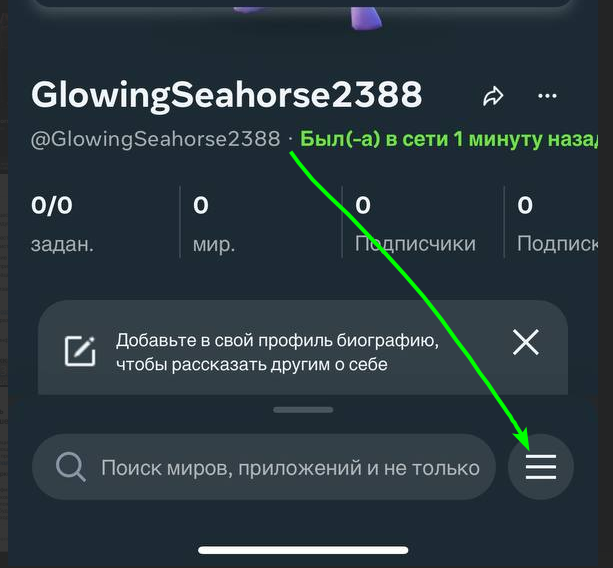
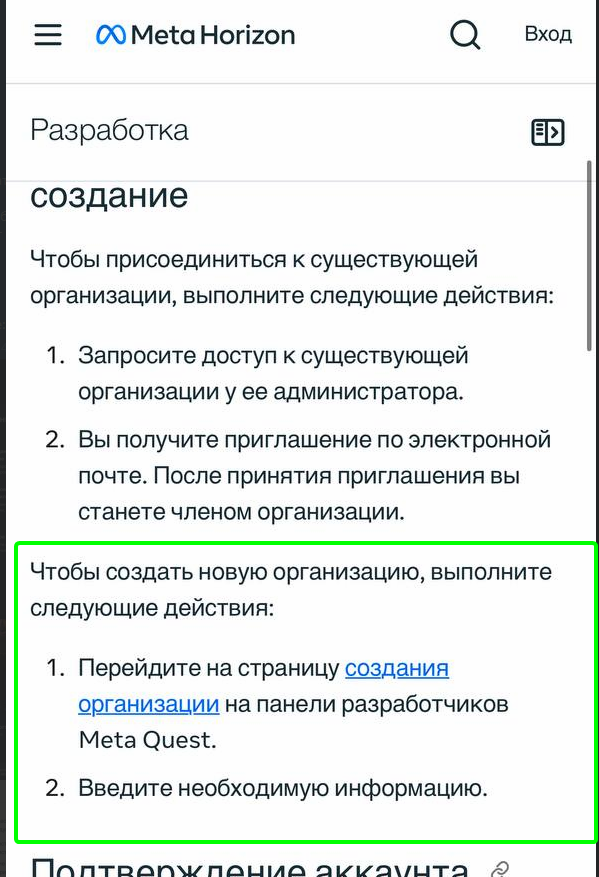
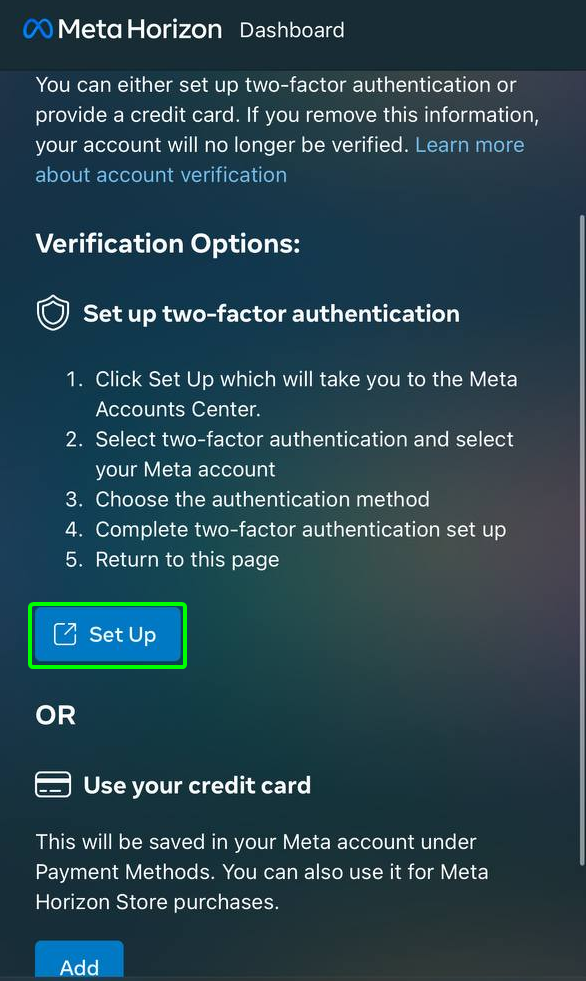
Sign in to Meta Horizon & Enable Developer Mode (Steps 2–9)
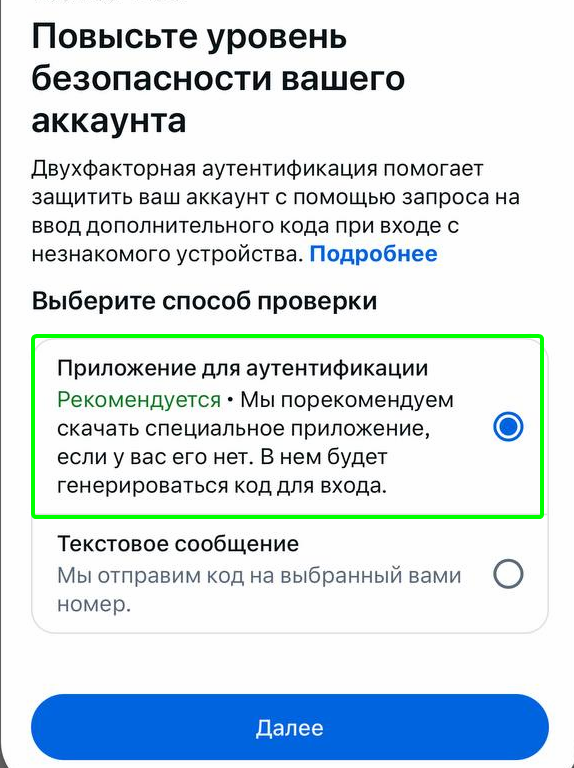
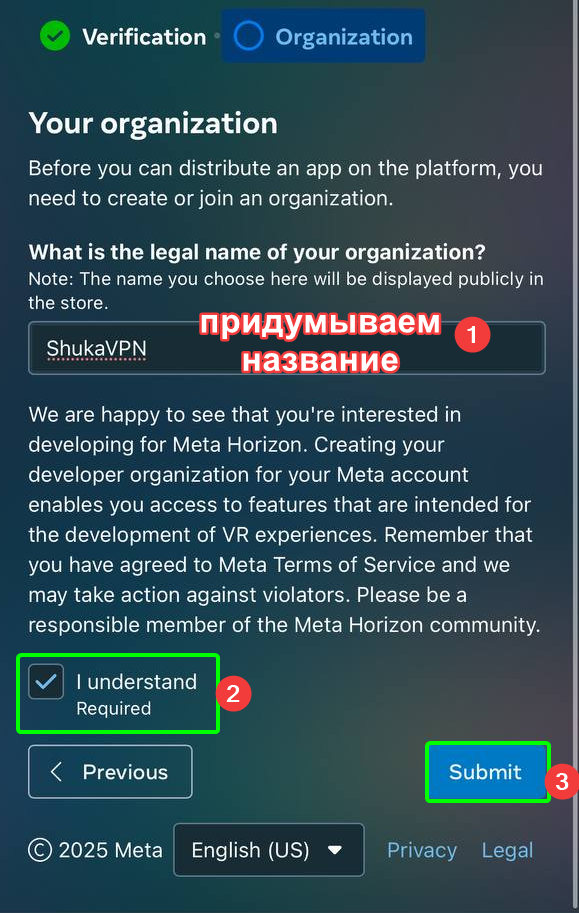
Log in to the Meta Horizon mobile app, register a developer organization on
developer.oculus.comwith 2FA enabled, and toggle Developer Mode ON in Headset Settings.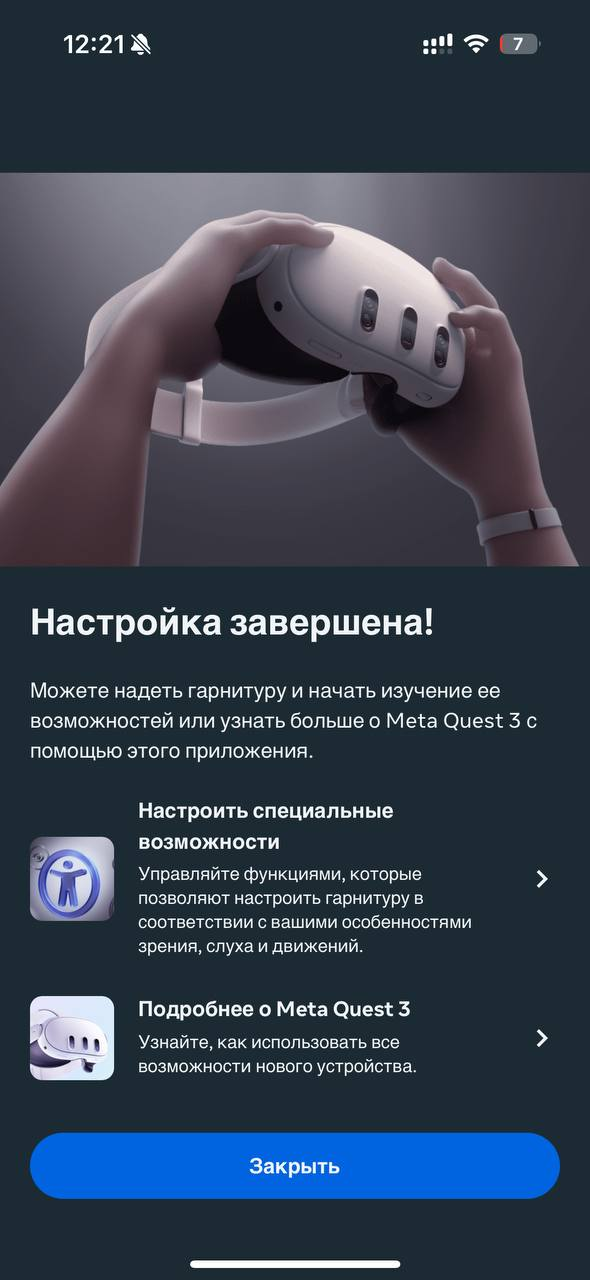
-
Step
Install SideQuest & Connect Headset via USB-C
Install SideQuest on your PC, plug in your Meta Quest headset, put it on, and tap Allow USB Debugging.
-
Step
Download VPN APK & Install via SideQuest
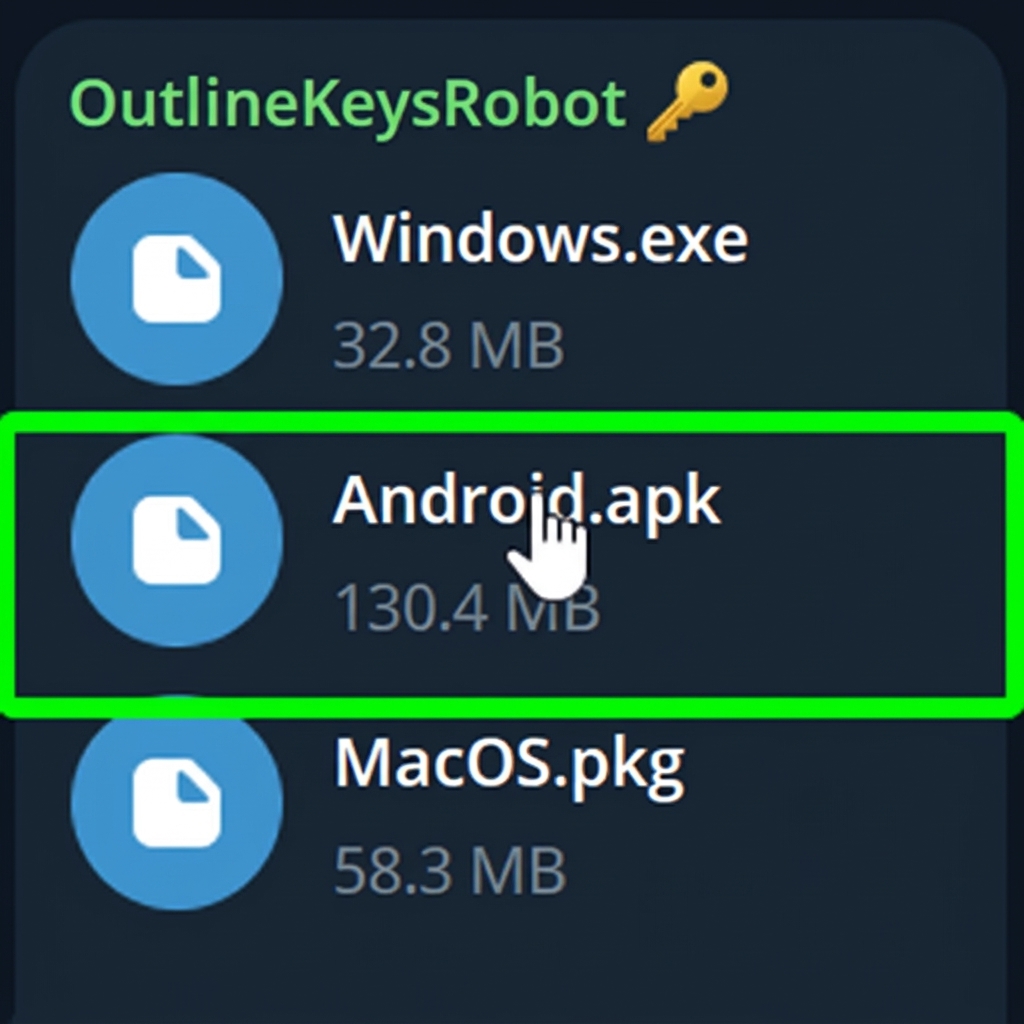
Download the Android APK below and click "Install APK file from folder on computer" in SideQuest.
-
Step
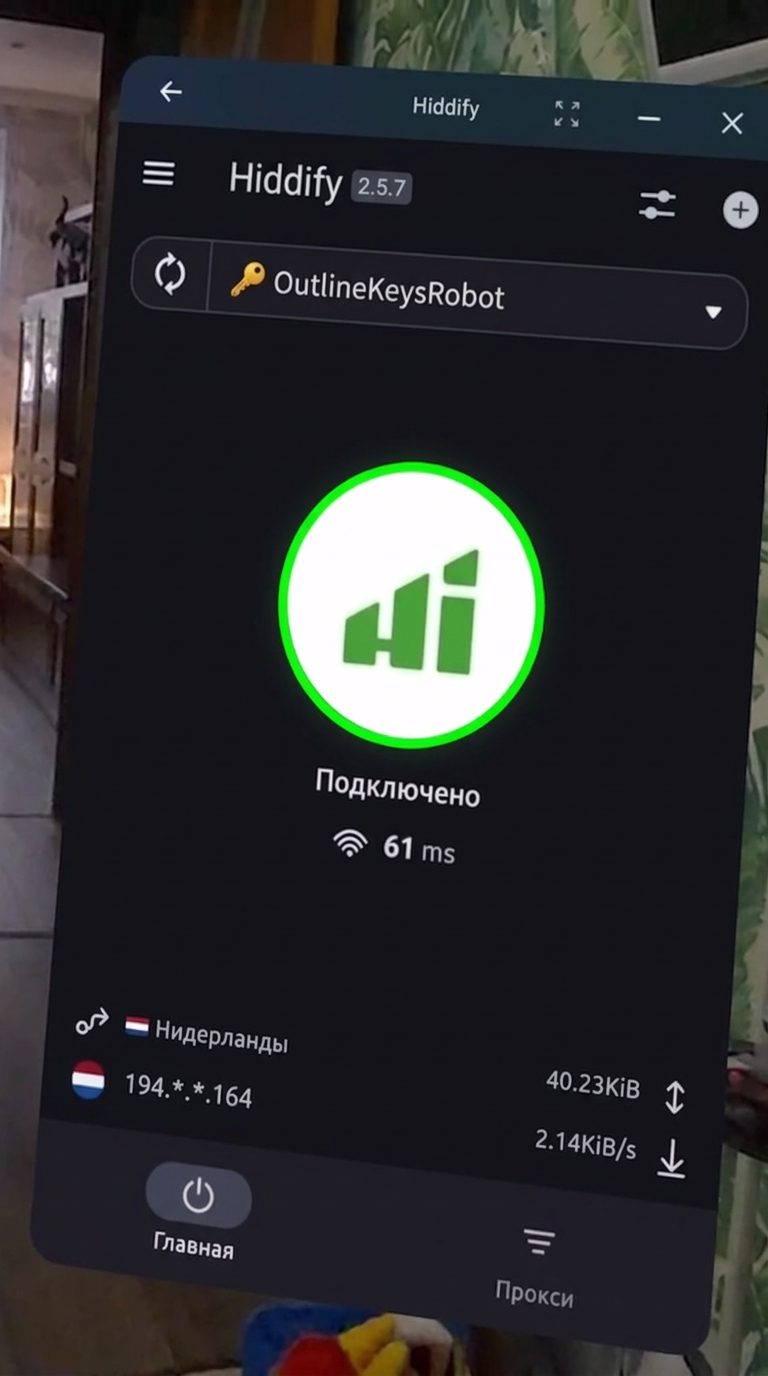
Open Unknown Sources, Import Subscription & Connect
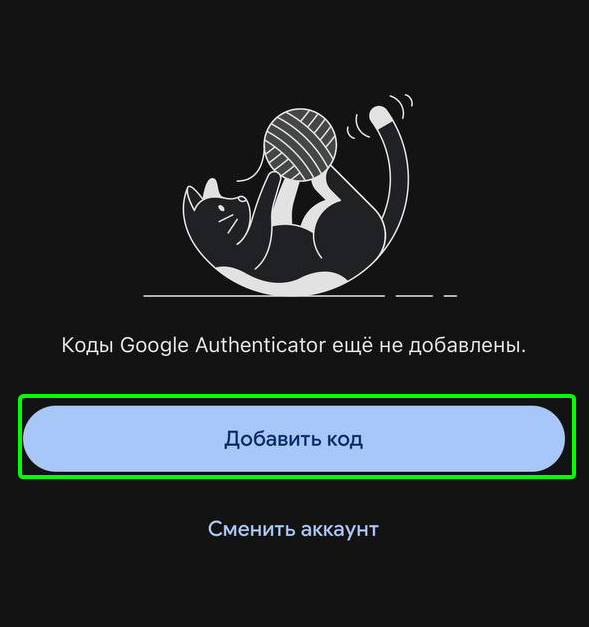
In your headset library, switch the filter to Unknown Sources, open the VPN client, import your subscription link from clipboard (+ → Add from Clipboard), and connect!
Need Help?
Ask our instant AI Assistant trained on all @OutlineKeysRobot manuals, open the bot to manage your keys, or message our support team.