Linux · FlClashX
Installing & Configuring FlClashX on Linux
Step-by-step guide to installing FlClashX on Linux, importing your VLESS subscription in 1 click, and configuring routing.
-
Step
App Installation
Choose the version for your device, click the button below and install the app.
-
Step
Add Subscription
Click the button below to add subscription
-
Step
If the subscription is not added
If nothing happens after clicking the button, add a subscription manually. Click the Get link button on this page in the upper right corner, copy the link. In FlClashX, go to the Profiles section, click the + button, select the URL, paste your copied link and click Send
-
Step
Connect and use
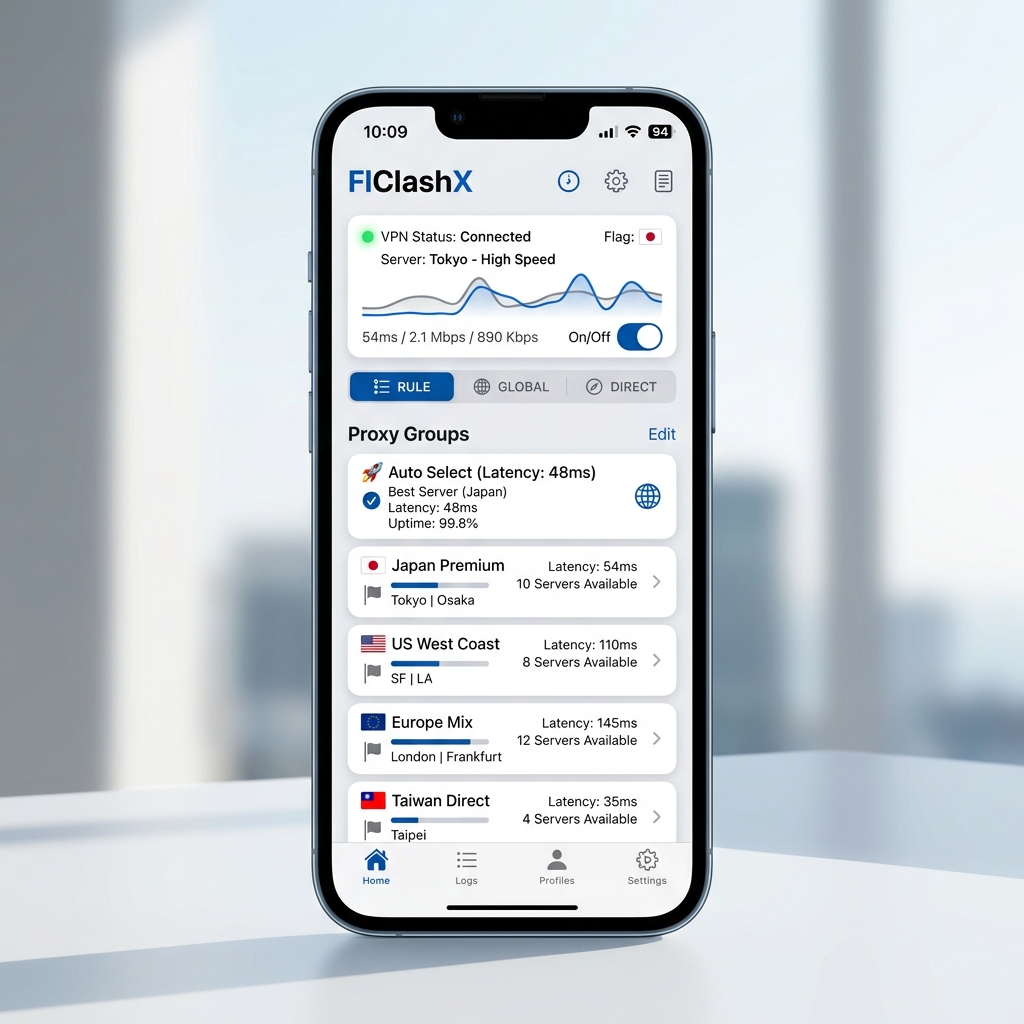
Select the added profile in the Profiles section. In the Dashboard, click the enable button in the lower right corner, and then turn on the switch next to the TUN item. After launching, in the Proxy section, you can change the choice of the server to which you will be connected.
Need Help?
Ask our instant AI Assistant trained on all @OutlineKeysRobot manuals, open the bot to manage your keys, or message our support team.