Windows · Happ
Installing & Configuring Happ on Windows
Step-by-step guide to installing Happ on Windows, importing your VLESS subscription in 1 click, and configuring routing.
-
Step
App Installation
Choose the version for your device, click the button below and install the app.

-
Step
Add Subscription
Click the button below — the app will open and the subscription will be added automatically
-
Step
Connect and use
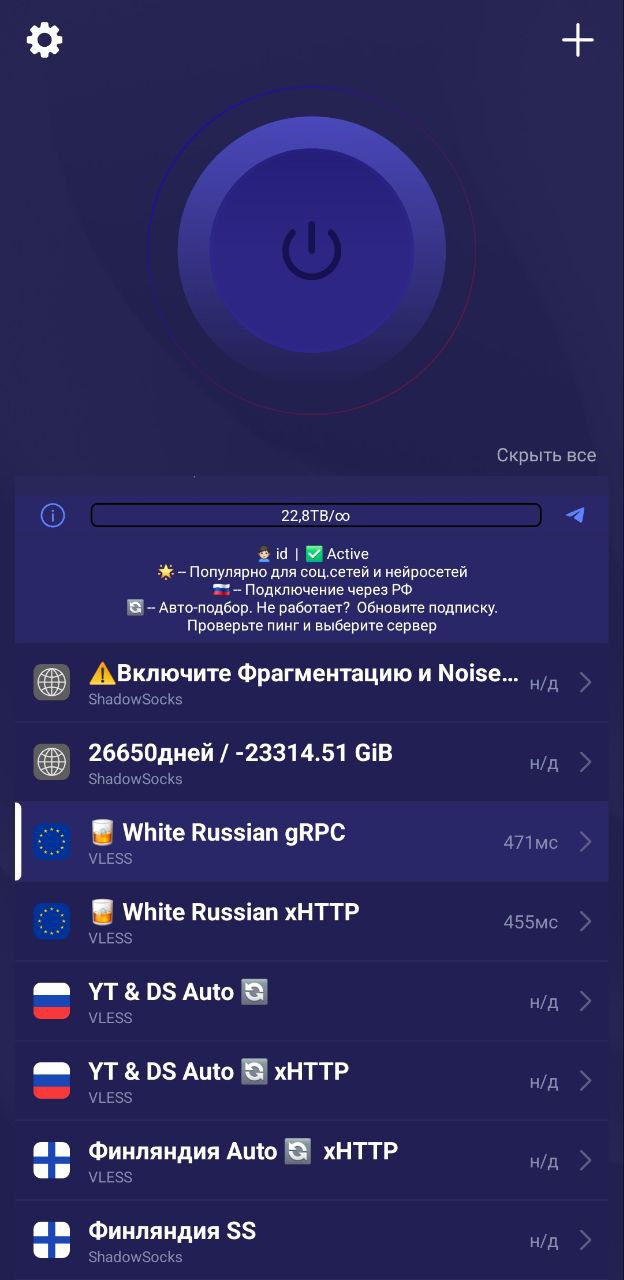
In the main section, click the large power button in the center to connect to VPN. Don't forget to select a server from the server list. If needed, choose another server from the server list.
-
Step
If internet stops working after connecting (Windows Firewall)
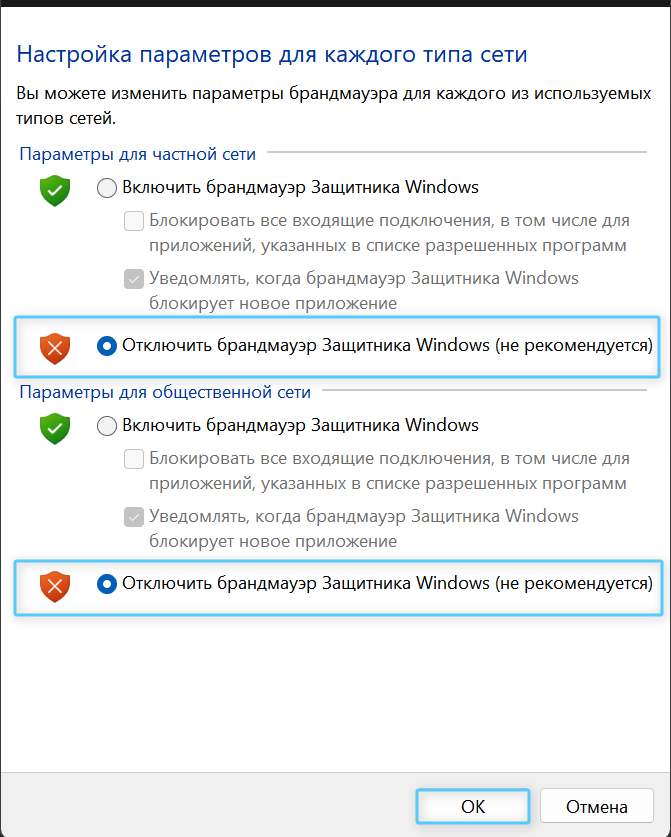
If websites do not open in TUN mode, Windows Defender Firewall may be blocking the virtual adapter. Search for "Windows Defender Firewall", open "Turn Windows Defender Firewall on or off", disable it as shown on the screenshot, and restart the app as Administrator.
Need Help?
Ask our instant AI Assistant trained on all @OutlineKeysRobot manuals, open the bot to manage your keys, or message our support team.