Windows · Throne
Installing & Configuring Throne on Windows
Step-by-step guide to installing Throne on Windows, importing your VLESS subscription in 1 click, and configuring routing.
-
Step
App Installation
Download and install Throne. Run the application with administrator rights.
-
Step
Enable HWID
On the main screen, enable TUN Mode. Click the settings button, select General Settings, go to the Subscription section and enable Send HWID option.
-
Step
Add Subscription
Click the button to copy the link. In Throne, click the Profiles button on the main menu and select Add Profile from Clipboard. When asked how to update, select Create New Subscription Group.
-
Step
Add routing rules
In Throne, click the Routing button on the main menu and select Download Profiles menu. Choose one of the required profiles. For Russia: ByPass_Russia, Proxy_Refilter, Proxy_Russia_Blocked. For Iran: Bypass_Iran. For China: Bypass_China or Proxy_China_Blocked.
-
Step
Connect and use
In the added subscription group, select the required server, right-click and click Connect.
-
Step
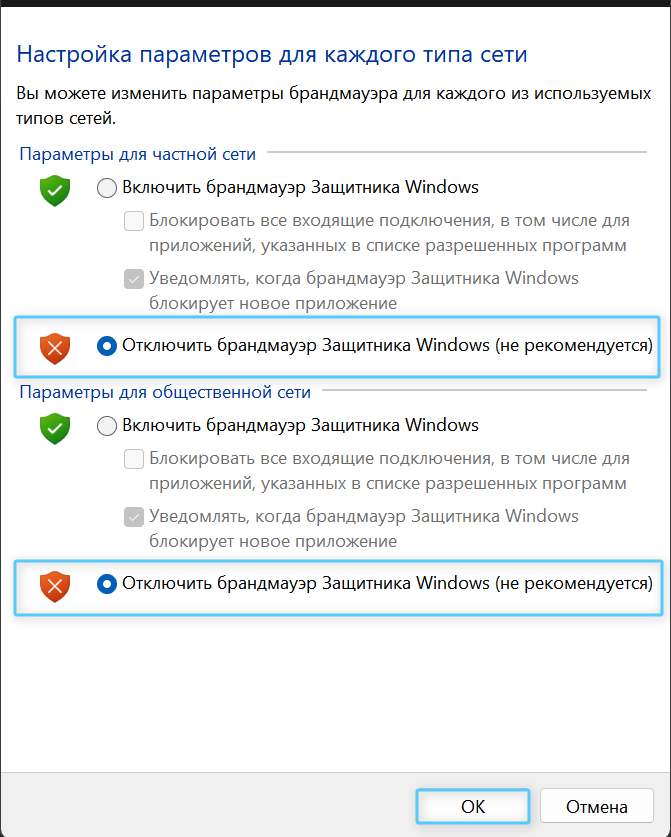
If internet stops working after connecting (Windows Firewall)
If websites do not open in TUN mode, Windows Defender Firewall may be blocking the virtual adapter. Search for "Windows Defender Firewall", open "Turn Windows Defender Firewall on or off", disable it as shown on the screenshot, and restart the app as Administrator.
Need Help?
Ask our instant AI Assistant trained on all @OutlineKeysRobot manuals, open the bot to manage your keys, or message our support team.