iOS · iPhone & iPad
VPN Setup on iPhone & iPad (iOS)
Select an app below. UXWay, Shadowrocket, Clash Mi, and RabbitHole work directly from the Russian App Store; INCY and Happ require the Global App Store (Kazakhstan). Inside @OutlineKeysRobot your subscription imports in 1 click.
-
Step
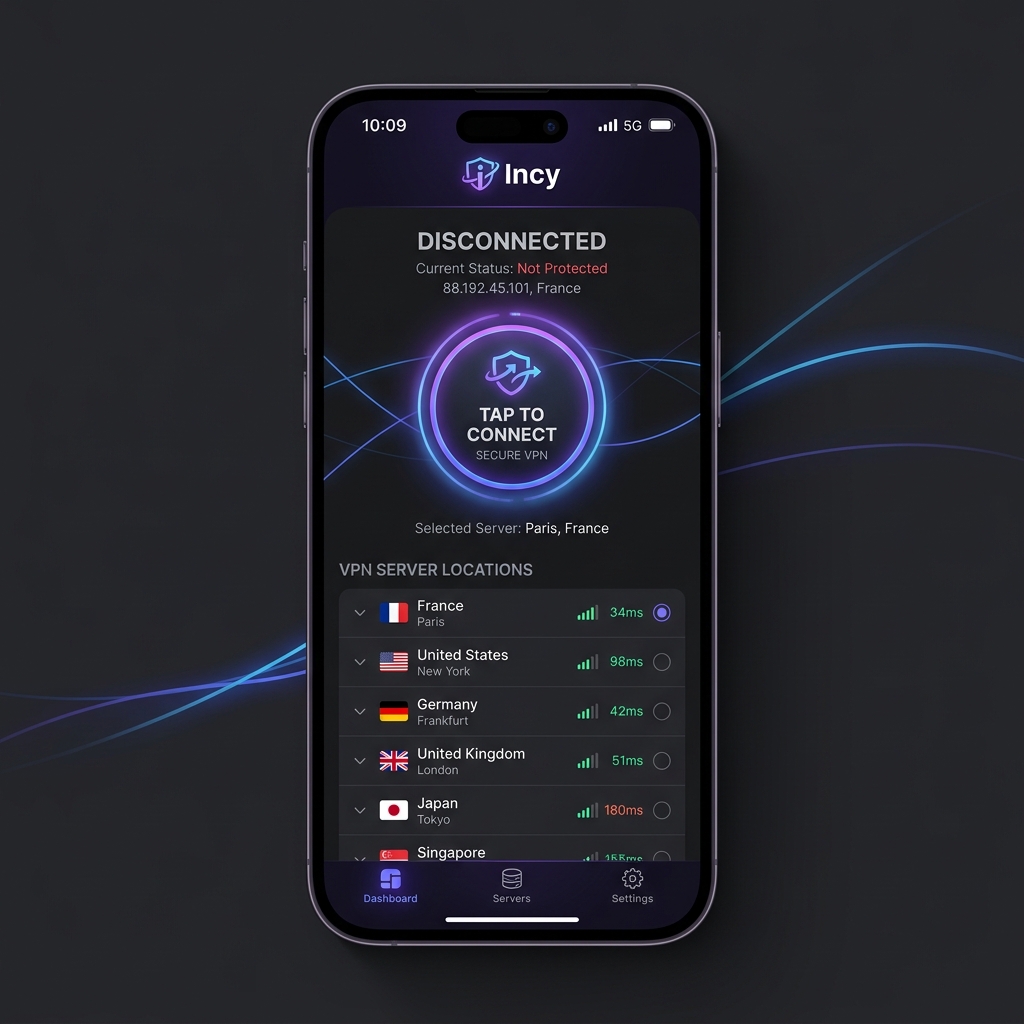
Download INCY
1. Download INCY (Global App Store only). Temporarily unavailable in the Russian App Store — change your region or use UXWay.
2. Open, allow everything the app needs to work.
3. Enable XrayTUN in the app's Advanced Settings.Important: Do not download fake Happ apps from the Russian App StoreInstall INCY only via the Global App Store button below. If the App Store says the app is unavailable in your region, change your Apple ID region to Kazakhstan first or use UXWay.
-
Step
Enable Xray TUN and TCP PING.
This is important for stable operation.
Settings => Tunnel => Use Xray-TUN
Settings => Ping Settings => TCP Ping. -
Step
Add a subscription to the app
Click on the button below to add a subscription. Check the Routing section -- the OutlineKeysRobot 4 JSON rule should be added automatically.
-
Step
App Installation
Open the page in App Store (Global only) and install the app. Temporarily unavailable in the Russian App Store — change your region or use UXWay. Launch it, in the VPN configuration permission window click Allow and enter your passcode.
Important: Do not download fake Happ apps from the Russian App StoreInstall Happ only via the Global App Store button below. If the App Store says the app is unavailable in your region, change your Apple ID region to Kazakhstan first or use UXWay.

-
Step
Add Subscription
Click the button below — the app will open and the subscription will be added automatically

-
Step
Connect and use
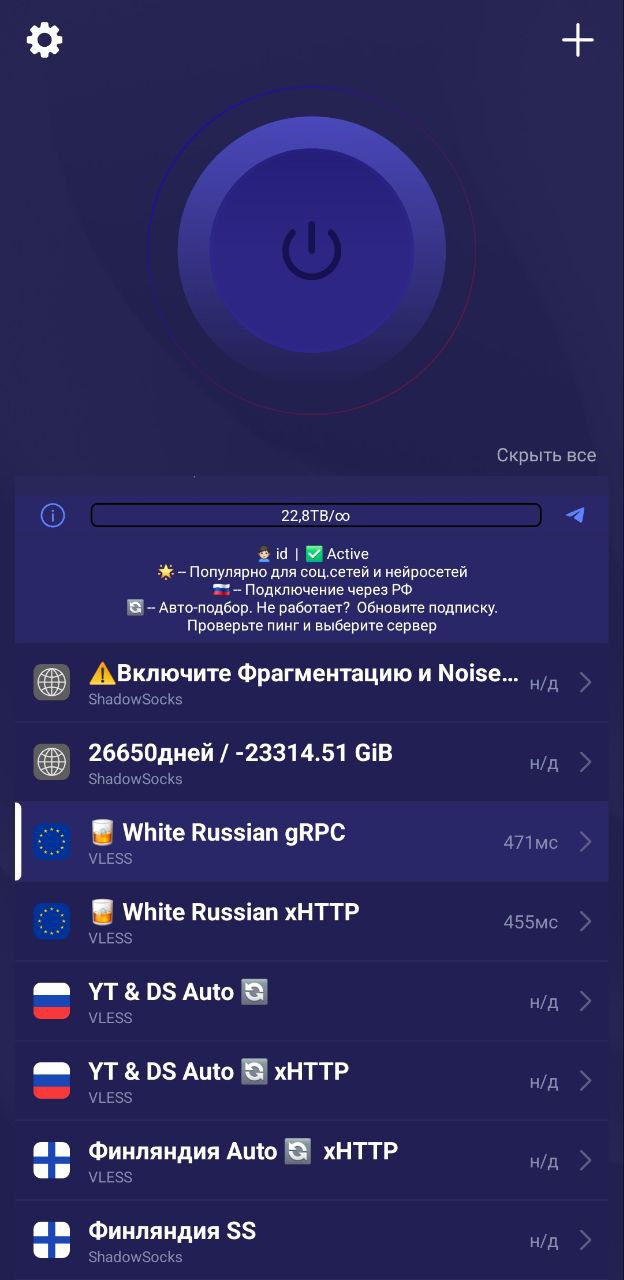
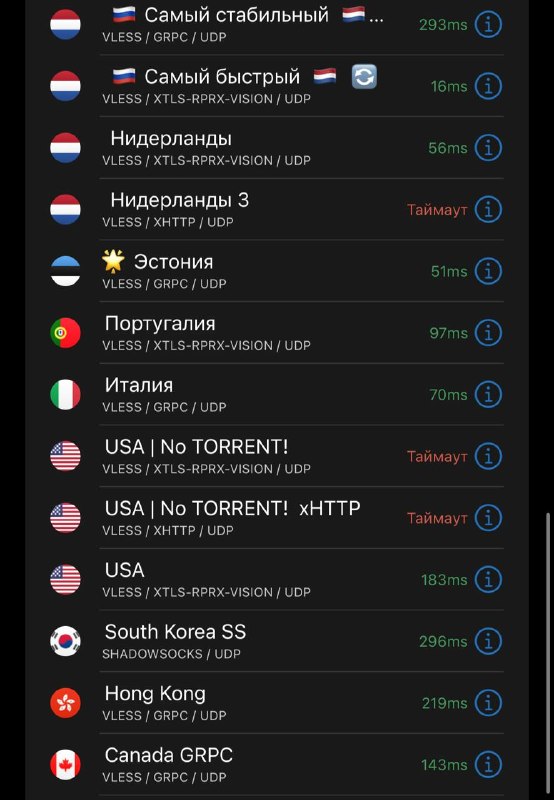
In the main section, click the large power button in the center to connect to VPN. Don't forget to select a server from the server list. If needed, choose another server from the server list.
-
Step
The app is in beta version.
This application was released quite recently and is under active development.
There may be issues with ping checks and routing. The server may be running, even though the ping shows n/a.
-
Step
App Installation
Open the page in App Store and install the app. Launch it, in the VPN configuration permission window click Allow and enter your passcode.
-
Step
Add Subscription
Click the button below — the app will open and the subscription will be added automatically
-
Step
Connect and use
In the main section, click the large power button in the center to connect to VPN. Don't forget to select a server from the server list.
-
Step
App Installation
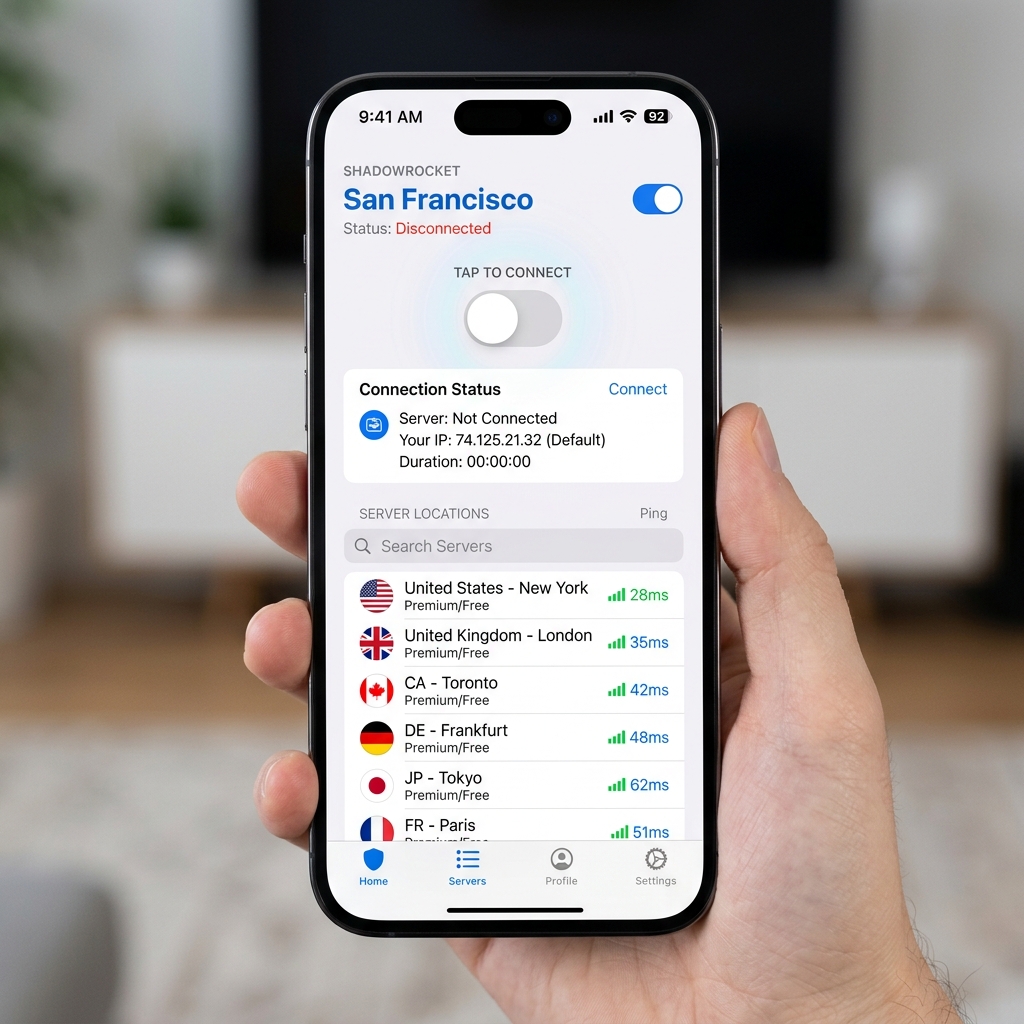
Open the page in App Store and install the app. Launch it, in the VPN configuration permission window click Allow and enter your passcode.
-
Step
Enable HWID
Go to Settings section, find Update section, find the Subscribe item and toggle Send HWID to ON position
-
Step
Add Subscription
Click the button below — the app will open and the subscription will be added automatically
-
Step
Add routing rules
By adding routing, internal websites and applications are not passed through the VPN
-
Step
Connect and use
In the main section, click the large power button in the center to connect to VPN. Don't forget to select a server from the server list. If needed, choose another server from the server list.
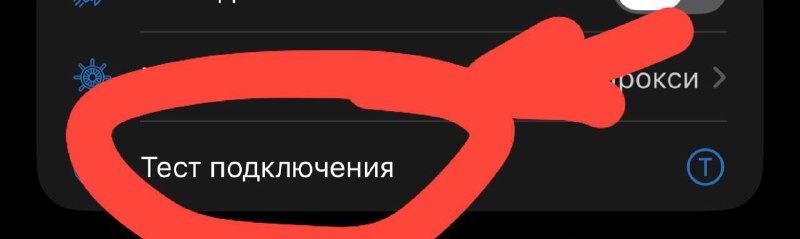
-
Step
App Installation
Open the App Store page and install the app.
-
Step
Add Subscription
Click the button below — the app will open and the subscription will be added automatically
-
Step
Connect and use
On the main screen, tap the Disconnected button, then in the VPN configuration prompt tap Allow and enter your password to connect.
-
Step
App Installation
Open the page in App Store and install the app. Launch it, click the Add VPN settings button at the bottom of the screen, in the VPN configuration permission window click Allow and enter your passcode.
-
Step
Add Subscription
Click the button below — the app will open and the subscription will be added automatically
-
Step
Connect and use
In the main section, click the Connect button at the bottom of the screen to connect to VPN. Don't forget to select a server from the server list. If needed, choose another server from the server list.
Direct App Guides for iPhone & iPad (iOS)
You can switch apps using the tabs at the top of this page or open a dedicated permanent link for any client:
Need Help?
Ask our instant AI Assistant trained on all @OutlineKeysRobot manuals, open the bot to manage your keys, or message our support team.